

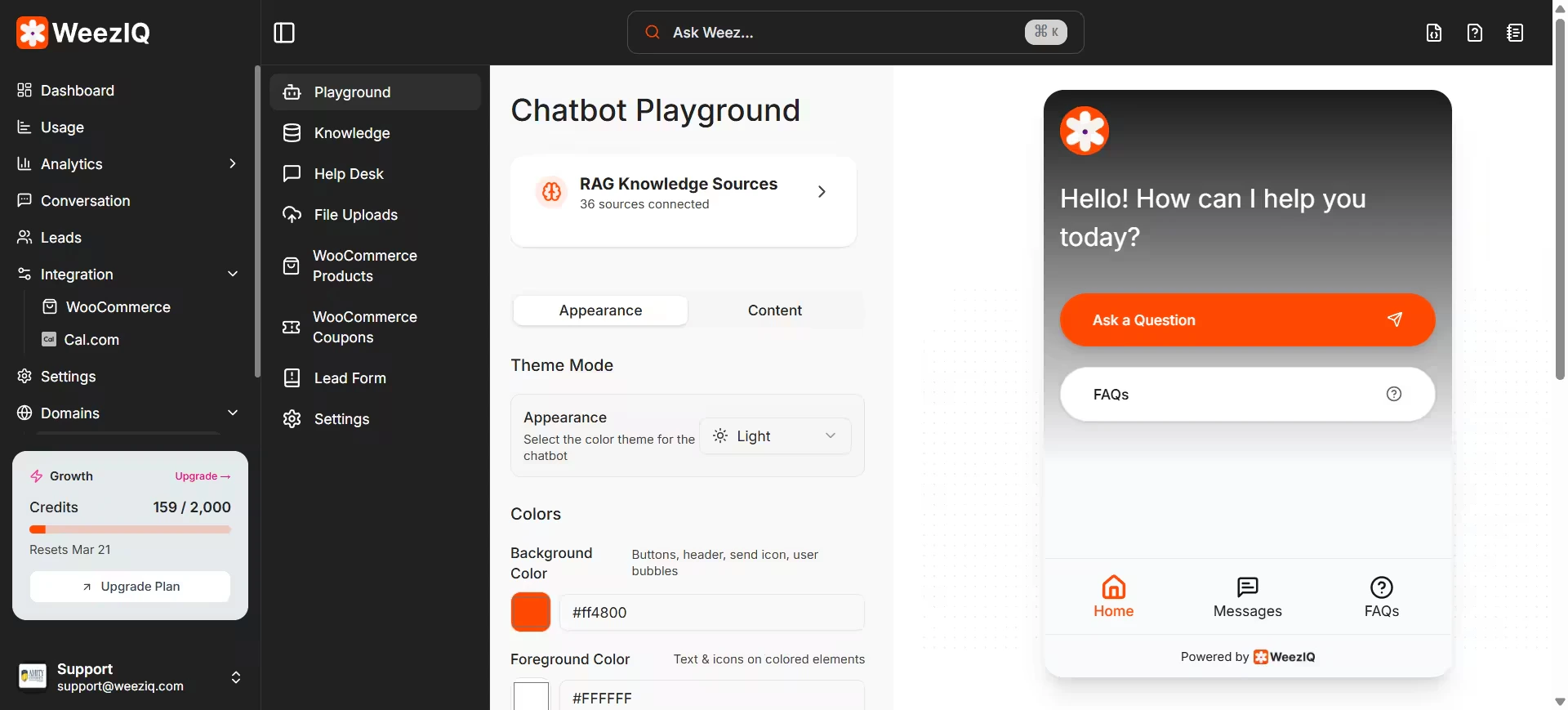
Branding and Appearance
Display Identity
Give your chatbot a name and a face.- Display Name: The name shown at the top of the chat widget (defaults to “WeezIQ AI”). You might change this to something like “Support Assistant” or your company’s name.
- Display Picture: Upload your logo or a custom avatar. This appears in the chat header and alongside bot messages.
Color Scheme
You can set individual colors for every visual element of the widget. Each accepts a hex color code so you can match your brand guidelines exactly.Theme Mode
Choose between Light and Dark themes. The widget will adapt its entire appearance based on this setting.Homepage Background
The chatbot’s home screen can be customized with:- Background Type: Solid color or a custom background image.
- Background Color: The solid color for the home screen.
- Background Image: Upload a custom image for the home screen backdrop.
- Homepage Text Color: Control the text color on the home screen.
Conversational Behavior
Welcome Message
Welcome Message
The first message the chatbot sends when a user opens the widget. Make it warm and inviting.Example: “Hi there! I’m here to help. What can I do for you today?”
Suggested Messages
Suggested Messages
Pre-written clickable prompts displayed above the text input. These give users a quick-start option without typing.Examples: “Where is my order?”, “What are your return policies?”, “Show me your pricing.”You can control whether suggested messages appear only at the start of the conversation or after every response.
Message Placeholder
Message Placeholder
The placeholder text inside the input field (defaults to “Type your message here…”). Customize it to set the tone.
Dismissible Notice
Dismissible Notice
An optional banner notice that appears at the top of the chat interface. Useful for announcements like “We’re currently experiencing higher than usual volume.” Users can dismiss it.
Task Summary
Task Summary
A configurable summary that describes what your chatbot specializes in. This helps set expectations for the user.
Rate Limiting
Credit Exhaustion Message
When your account runs out of AI credits, the chatbot needs to gracefully inform the user. You can set a custom message for this scenario.Default message: “I’m currently unavailable. Please try again later or contact support.”